The navigation property in docs.json controls the structure and information hierarchy of your documentation. With proper navigation configuration, you can organize your content so that users can find exactly what they’re looking for. Choose one primary organizational pattern at the root level of your navigation. Once you’ve chosen your primary pattern, you can nest other navigation elements within it.

Pages

Pages are the most fundamental navigation component. Each page is an MDX file in your documentation repository. Decorative graphic of pages. In the navigation object, pages is an array where each entry must reference the path to a page file.
{
  "navigation": {
    "pages": [
      "settings",
      "pages",
      "navigation",
      "themes",
      "custom-domain"
    ]
  }
}

Groups

Use groups to organize your sidebar navigation into sections. You can nest groups within each other, label them with tags, and style them with icons. Decorative graphic of groups. In the navigation object, groups is an array where each entry is an object that requires a group field and a pages field. The icon, tag, root, and expanded fields are optional.
{
  "navigation": {
    "groups": [
      {
        "group": "Getting started",
        "icon": "play",
        "pages": [
          "quickstart",
          {
            "group": "Editing",
            "expanded": false,
            "icon": "pencil",
            "pages": [
              "installation",
              "editor"
            ]
          }
        ]
      },
      {
        "group": "Writing content",
        "icon": "notebook-text",
        "tag": "NEW",
        "pages": [
          "writing-content/page",
          "writing-content/text"
        ]
      }
    ]
  }
}

Root page

Use the root property to designate a main page for a group. When a group has a root page, clicking the group title in the sidebar navigation opens the root page. Root pages work for top-level and nested groups.
Example group with a root page
{
  "navigation": {
    "groups": [
      {
        "group": "API pages",
        "root": "api-overview",
        "pages": [
          "api-reference/get",
          "api-reference/post",
          "api-reference/delete"
        ]
      }
    ]
  }
}

Default expanded state

Use the expanded property to control the default state of a nested group in the navigation sidebar.
  • expanded: true: Group is expanded by default.
  • expanded: false or omitted: Group is collapsed by default.
The expanded property only affects nested groups—groups within groups. Top-level groups are always expanded and cannot be collapsed.
{
  "group": "Getting started",
  "pages": [
    "quickstart",
    {
      "group": "Advanced",
      "expanded": false,
      "pages": ["installation", "configuration"]
    }
  ]
}

Tabs

Tabs create distinct sections of your documentation with separate URL paths. Tabs create a horizontal navigation bar at the top of your documentation that lets users switch between sections. Decorative graphic of a tab navigation. In the navigation object, tabs is an array where each entry is an object that requires a tab field and can contain other navigation fields such as groups, pages, icons, or links to external pages.
{
  "navigation": {
    "tabs": [
      {
        "tab": "API reference",
        "icon": "square-terminal",
        "pages": [
          "api-reference/get",
          "api-reference/post",
          "api-reference/delete"
        ]
      },
      {
        "tab": "SDKs",
        "icon": "code",
        "pages": [
          "sdk/fetch",
          "sdk/create",
          "sdk/delete"
        ]
      },
      {
        "tab": "Blog",
        "icon": "newspaper",
        "href": "https://external-link.com/blog"
      }
    ]
  }
}
Menus add dropdown navigation items to a tab. Use menus to help users go directly to specific pages within a tab. In the navigation object, menu is an array where each entry is an object that requires an item field and can contain other navigation fields such as groups, pages, icons, or links to external pages. Menu items can only contain groups, pages, and external links.
{
  "navigation": {
    "tabs": [
      {
        "tab": "Developer tools",
        "icon": "square-terminal",
        "menu": [
          {
            "item": "API reference",
            "icon": "rocket",
            "groups": [
              {
                "group": "Core endpoints",
                "icon": "square-terminal",
                "pages": [
                  "api-reference/get",
                  "api-reference/post",
                  "api-reference/delete"
                ]
              }
            ]
          },
          {
            "item": "SDKs",
            "icon": "code",
            "description": "SDKs are used to interact with the API.",
            "pages": [
              "sdk/fetch",
              "sdk/create",
              "sdk/delete"
            ]
          }
        ]
      }
    ]
  }
}

Anchors

Anchors add persistent navigation items to the top of your sidebar. Use anchors to section your content, provide quick access to external resources, or create prominent calls to action. Decorative graphic of an anchor navigation. In the navigation object, anchors is an array where each entry is an object that requires an anchor field and can contain other navigation fields such as groups, pages, icons, or links to external pages.
{
  "navigation": {
    "anchors": [
      {
        "anchor": "Documentation",
        "icon": "book-open",
        "pages": [
          "quickstart",
          "development",
          "navigation"
        ]
      },
      {
        "anchor": "API reference",
        "icon": "square-terminal",
        "pages": [
          "api-reference/get",
          "api-reference/post",
          "api-reference/delete"
        ]
      },
      {
        "anchor": "Blog",
        "href": "https://external-link.com/blog"
      }
    ]
  }
}

Global anchors

Use global anchors for links that should appear on all pages, regardless of which section of your navigation the user is viewing. Global anchors are particularly useful for linking to resources outside your documentation (such as a blog, community forum, or support portal) or for providing consistent access to important internal pages (such as a changelog or status page). Global anchors support both external URLs and relative paths to pages within your documentation.
{
  "navigation": {
    "global":  {
      "anchors": [
        {
          "anchor": "Changelog",
          "icon": "list",
          "href": "/changelog"
        },
        {
          "anchor": "Blog",
          "icon": "pencil",
          "href": "https://mintlify.com/blog"
        }
      ]
    },
    "tabs": /*...*/
  }
}

Products

Decorative graphic of a product switcher. Products create a dedicated navigation division for organizing product-specific documentation. Use products to separate different offerings, services, or major feature sets within your documentation. In the navigation object, products is an array where each entry is an object that requires a product field and can contain other navigation fields such as groups, pages, icons, or links to external pages.
{
  "navigation": {
    "products": [
      {
        "product": "Core API",
        "description": "Core API description",    
        "icon": "api",
        "groups": [
          {
            "group": "Getting started",
            "pages": [
              "core-api/quickstart",
              "core-api/authentication"
            ]
          },
          {
            "group": "Endpoints",
            "pages": [
              "core-api/users",
              "core-api/orders"
            ]
          }
        ]
      },
      {
        "product": "Analytics Platform",
        "description": "Analytics Platform description",
        "icon": "chart-bar",
        "pages": [
          "analytics/overview",
          "analytics/dashboard",
          "analytics/reports"
        ]
      },
      {
        "product": "Mobile SDK",
        "description": "Mobile SDK description",
        "icon": "smartphone",
        "href": "https://mobile-sdk-docs.example.com"
      }
    ]
  }
}
Dropdowns are an expandable menu at the top of your sidebar navigation. Each item in a dropdown directs to a section of your documentation. Decorative graphic of a dropdown navigation. In the navigation object, dropdowns is an array where each entry is an object that requires a dropdown field and can contain other navigation fields such as groups, pages, icons, or links to external pages.
{
  "navigation": {
    "dropdowns": [
      {
        "dropdown": "Documentation",
        "icon": "book-open",
        "pages": [
          "quickstart",
          "development",
          "navigation"
        ]
      },
      {
        "dropdown": "API reference",
        "icon": "square-terminal",
        "pages": [
          "api-reference/get",
          "api-reference/post",
          "api-reference/delete"
        ]
      },
      {
        "dropdown": "Blog",
        "href": "https://external-link.com/blog"
      }
    ]
  }
}

OpenAPI

Integrate OpenAPI specifications directly into your navigation structure to automatically generate API documentation. Create dedicated API sections or place endpoint pages within other navigation components. Set a default OpenAPI specification at any level of your navigation hierarchy. Child elements inherit the specification unless they define their own.
When you add the openapi property to a navigation element (such as an anchor, tab, or group) without specifying any pages, Mintlify automatically generates pages for all endpoints defined in your OpenAPI specification.To control which endpoints appear, explicitly list the desired endpoints in a pages array.
For more information about referencing OpenAPI endpoints in your docs, see the OpenAPI setup.
{
  "navigation": {
    "groups": [
      {
        "group": "API reference",
        "openapi": "/path/to/openapi-v1.json",
        "pages": [
          "overview",
          "authentication",
          "GET /users",
          "POST /users",
          {
            "group": "Products",
            "openapi": "/path/to/openapi-v2.json",
            "pages": [
              "GET /products",
              "POST /products"
            ]
          }
        ]
      }
    ]
  }
}

Versions

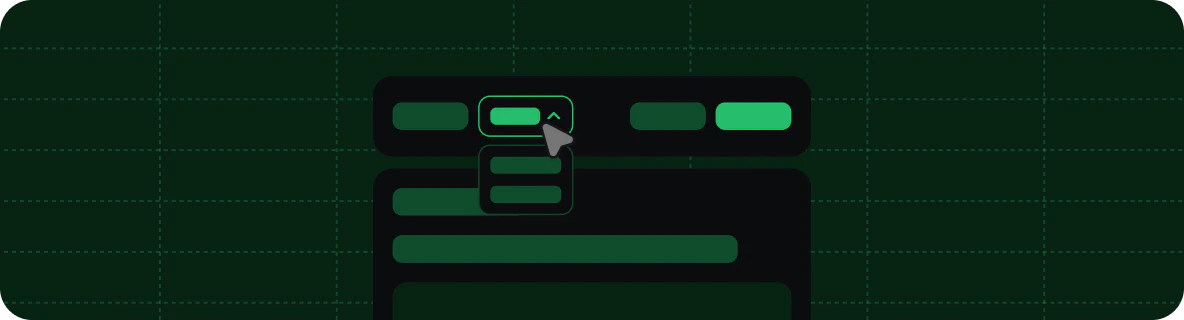
Partition your navigation into different versions. Versions are selectable from a dropdown menu. Decorative graphic of a version switcher. In the navigation object, versions is an array where each entry is an object that requires a version field and can contain any other navigation fields.
{
  "navigation": {
    "versions": [
      {
        "version": "1.0.0",
        "groups": [
          {
            "group": "Getting started",
            "pages": ["v1/overview", "v1/quickstart", "v1/development"]
          }
        ]
      },
      {
        "version": "2.0.0",
        "groups": [
          {
            "group": "Getting started",
            "pages": ["v2/overview", "v2/quickstart", "v2/development"]
          }
        ]
      }
    ]
  }
}

Default version

Mintlify uses the first version in the versions array as the default. Use the default field to specify a different version as the default.
{
  "navigation": {
    "versions": [
      {
        "version": "1.0.0",
        "groups": [
          {
            "group": "Getting started",
            "pages": ["v1/overview", "v1/quickstart"]
          }
        ]
      },
      {
        "version": "2.0.0",
        "default": true,
        "groups": [
          {
            "group": "Getting started",
            "pages": ["v2/overview", "v2/quickstart"]
          }
        ]
      }
    ]
  }
}

Version tags

Add a badge label to version entries in the version selector dropdown using the optional tag field. Use tags to highlight specific versions such as “Latest,” “Recommended,” or “Beta.”
{
  "navigation": {
    "versions": [
      {
        "version": "2026_03",
        "tag": "Latest",
        "groups": [
          {
            "group": "Getting started",
            "pages": ["getting-started", "quickstart"]
          }
        ]
      },
      {
        "version": "2025_12",
        "tag": "Recommended",
        "groups": [
          {
            "group": "Getting started",
            "pages": ["2025_12/getting-started", "2025_12/quickstart"]
          }
        ]
      },
      {
        "version": "2025_09",
        "tag": "Deprecated",
        "groups": [
          {
            "group": "Getting started",
            "pages": ["2025_09/getting-started", "2025_09/quickstart"]
          }
        ]
      }
    ]
  }
}

Languages

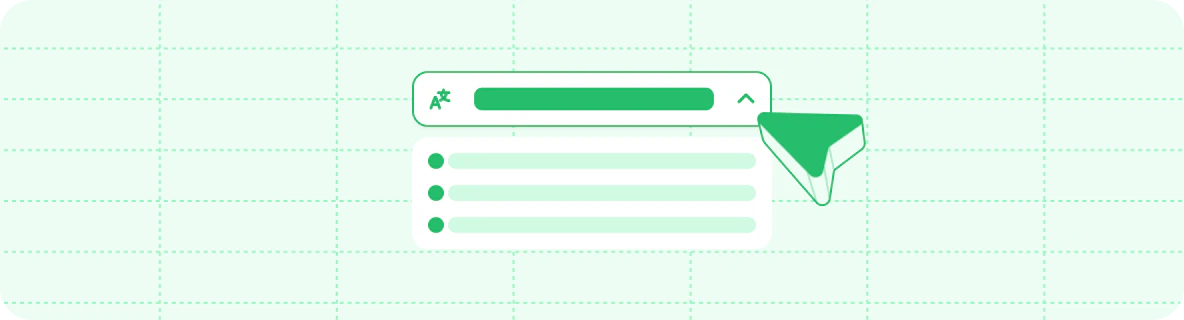
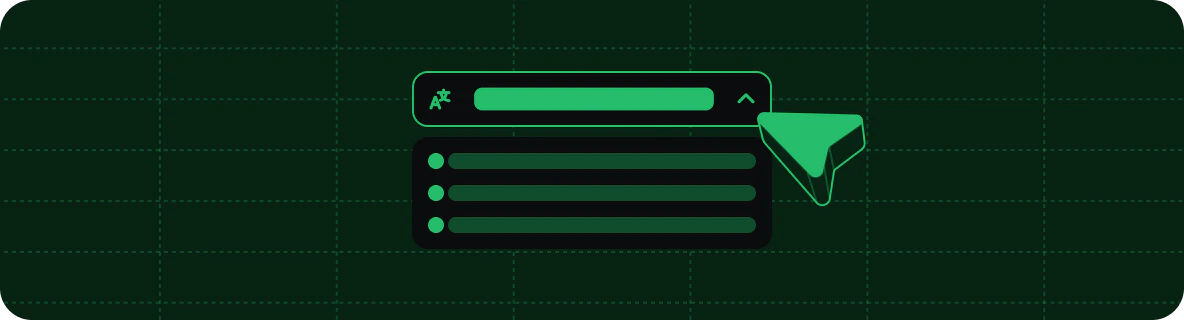
Partition your navigation into different languages. Languages are selectable from a dropdown menu. Decorative graphic of a language switcher. In the navigation object, languages is an array where each entry is an object that requires a language field and can contain any other navigation fields, including language-specific banner, footer, and navbar configurations. We currently support the following languages for localization:
https://mintcdn.com/mintlify-mintlify-remove-api-spec-1774027679/uToolhlWQuCtNzfF/images/navigation/languages/ar.png?fit=max&auto=format&n=uToolhlWQuCtNzfF&q=85&s=6c63eb17dee8887addb2a35e6ffc16b0

Arabic (ar)

https://mintcdn.com/mintlify-mintlify-remove-api-spec-1774027679/uToolhlWQuCtNzfF/images/navigation/languages/ca.png?fit=max&auto=format&n=uToolhlWQuCtNzfF&q=85&s=a4dafeb87ce0c24d5740d981ae326d00

Catalan (ca)

https://mintcdn.com/mintlify-mintlify-remove-api-spec-1774027679/uToolhlWQuCtNzfF/images/navigation/languages/cs.png?fit=max&auto=format&n=uToolhlWQuCtNzfF&q=85&s=af50f3839a6330135c8cde074b5e059d

Czech (cs)

https://mintcdn.com/mintlify-mintlify-remove-api-spec-1774027679/uToolhlWQuCtNzfF/images/navigation/languages/cn.png?fit=max&auto=format&n=uToolhlWQuCtNzfF&q=85&s=52a416708d0dba9ae0ae2438aa816fcc

Chinese (cn)

https://mintcdn.com/mintlify-mintlify-remove-api-spec-1774027679/uToolhlWQuCtNzfF/images/navigation/languages/cn.png?fit=max&auto=format&n=uToolhlWQuCtNzfF&q=85&s=52a416708d0dba9ae0ae2438aa816fcc

Chinese (zh-Hant)

https://mintcdn.com/mintlify-mintlify-remove-api-spec-1774027679/uToolhlWQuCtNzfF/images/navigation/languages/nl.png?fit=max&auto=format&n=uToolhlWQuCtNzfF&q=85&s=a4cfa406fe3cda41884079f192a2d4cb

Dutch (nl)

https://mintcdn.com/mintlify-mintlify-remove-api-spec-1774027679/uToolhlWQuCtNzfF/images/navigation/languages/en.png?fit=max&auto=format&n=uToolhlWQuCtNzfF&q=85&s=cc6ae4180dfeeb88df5ceba30111a92f

English (en)

https://mintcdn.com/mintlify-mintlify-remove-api-spec-1774027679/uToolhlWQuCtNzfF/images/navigation/languages/fr.png?fit=max&auto=format&n=uToolhlWQuCtNzfF&q=85&s=385f7ffd3bdc2fcd8c887c21288c14f4

French (fr)

https://mintcdn.com/mintlify-mintlify-remove-api-spec-1774027679/uToolhlWQuCtNzfF/images/navigation/languages/de.png?fit=max&auto=format&n=uToolhlWQuCtNzfF&q=85&s=39ff678b4808ce54358e3e87dab81924

German (de)

https://mintcdn.com/mintlify-mintlify-remove-api-spec-1774027679/uToolhlWQuCtNzfF/images/navigation/languages/he.png?fit=max&auto=format&n=uToolhlWQuCtNzfF&q=85&s=a8688f36e94bbf898ed3dc7710406f98

Hebrew (he)

https://mintcdn.com/mintlify-mintlify-remove-api-spec-1774027679/uToolhlWQuCtNzfF/images/navigation/languages/hi.png?fit=max&auto=format&n=uToolhlWQuCtNzfF&q=85&s=287e7ef52bbb59340aa2bb679dc4073f

Hindi (hi)

https://mintcdn.com/mintlify-mintlify-remove-api-spec-1774027679/uToolhlWQuCtNzfF/images/navigation/languages/hu.png?fit=max&auto=format&n=uToolhlWQuCtNzfF&q=85&s=3caf5b86d1dc7e214288d7f8a5c3f8e5

Hungarian (hu)

https://mintcdn.com/mintlify-mintlify-remove-api-spec-1774027679/uToolhlWQuCtNzfF/images/navigation/languages/id.png?fit=max&auto=format&n=uToolhlWQuCtNzfF&q=85&s=08a0d668247a67149193dd2c4f18e161

Indonesian (id)

https://mintcdn.com/mintlify-mintlify-remove-api-spec-1774027679/uToolhlWQuCtNzfF/images/navigation/languages/it.png?fit=max&auto=format&n=uToolhlWQuCtNzfF&q=85&s=a3a931efe93bd1314bf5ab4c5fda62a6

Italian (it)

https://mintcdn.com/mintlify-mintlify-remove-api-spec-1774027679/uToolhlWQuCtNzfF/images/navigation/languages/jp.png?fit=max&auto=format&n=uToolhlWQuCtNzfF&q=85&s=33b17c2dd19c549ff5324b9fa2923422

Japanese (jp)

https://mintcdn.com/mintlify-mintlify-remove-api-spec-1774027679/uToolhlWQuCtNzfF/images/navigation/languages/ko.png?fit=max&auto=format&n=uToolhlWQuCtNzfF&q=85&s=4e0912a39eafb967f2ed2b638638da47

Korean (ko)

https://mintcdn.com/mintlify-mintlify-remove-api-spec-1774027679/uToolhlWQuCtNzfF/images/navigation/languages/lv.png?fit=max&auto=format&n=uToolhlWQuCtNzfF&q=85&s=4fc469c88d97081296fdf79982acb010

Latvian (lv)

https://mintcdn.com/mintlify-mintlify-remove-api-spec-1774027679/uToolhlWQuCtNzfF/images/navigation/languages/no.png?fit=max&auto=format&n=uToolhlWQuCtNzfF&q=85&s=6383ff253777aa5d177abcf8a0e9b56b

Norwegian (no)

https://mintcdn.com/mintlify-mintlify-remove-api-spec-1774027679/uToolhlWQuCtNzfF/images/navigation/languages/pl.png?fit=max&auto=format&n=uToolhlWQuCtNzfF&q=85&s=3da6f19a498d4aa27aa9da25a23fee61

Polish (pl)

https://mintcdn.com/mintlify-mintlify-remove-api-spec-1774027679/uToolhlWQuCtNzfF/images/navigation/languages/pt-br.png?fit=max&auto=format&n=uToolhlWQuCtNzfF&q=85&s=08261c9708e70496270055a6b0b77722

Portuguese (pt-BR)

https://mintcdn.com/mintlify-mintlify-remove-api-spec-1774027679/uToolhlWQuCtNzfF/images/navigation/languages/ro.png?fit=max&auto=format&n=uToolhlWQuCtNzfF&q=85&s=83257fe25f31b520fcb1e6b22b266ab9

Romanian (ro)

https://mintcdn.com/mintlify-mintlify-remove-api-spec-1774027679/uToolhlWQuCtNzfF/images/navigation/languages/ru.png?fit=max&auto=format&n=uToolhlWQuCtNzfF&q=85&s=0771302cc81ab812c4a6b88f2ab768c3

Russian (ru)

https://mintcdn.com/mintlify-mintlify-remove-api-spec-1774027679/uToolhlWQuCtNzfF/images/navigation/languages/es.png?fit=max&auto=format&n=uToolhlWQuCtNzfF&q=85&s=f027bd6b5f7d6416ef472faff7153a6e

Spanish (es)

https://mintcdn.com/mintlify-mintlify-remove-api-spec-1774027679/uToolhlWQuCtNzfF/images/navigation/languages/sv.png?fit=max&auto=format&n=uToolhlWQuCtNzfF&q=85&s=79354aea03d26473e06f78355029077e

Swedish (sv)

https://mintcdn.com/mintlify-mintlify-remove-api-spec-1774027679/uToolhlWQuCtNzfF/images/navigation/languages/tr.png?fit=max&auto=format&n=uToolhlWQuCtNzfF&q=85&s=43f9a250f6fd3e638c562c0cc7a0b298

Turkish (tr)

https://mintcdn.com/mintlify-mintlify-remove-api-spec-1774027679/uToolhlWQuCtNzfF/images/navigation/languages/ua.png?fit=max&auto=format&n=uToolhlWQuCtNzfF&q=85&s=2b89da49fad3aee9d32d9aa95251ec1a

Ukrainian (ua)

https://mintcdn.com/mintlify-mintlify-remove-api-spec-1774027679/uToolhlWQuCtNzfF/images/navigation/languages/uz.png?fit=max&auto=format&n=uToolhlWQuCtNzfF&q=85&s=635559f1c8831c85bfc5fd7abe5438bf

Uzbek (uz)

https://mintcdn.com/mintlify-mintlify-remove-api-spec-1774027679/uToolhlWQuCtNzfF/images/navigation/languages/vi.png?fit=max&auto=format&n=uToolhlWQuCtNzfF&q=85&s=f2888fd7a9692b5b2decee15ccfccdbd

Vietnamese (vi)

{
  "navigation": {
    "languages": [
      {
        "language": "en",
        "banner": {
          "content": "🚀 Version 2.0 is now live! See our [changelog](/en/changelog) for details.",
          "dismissible": true
        },
        "footer": {
          "socials": {
            "x": "https://x.com/mintlify"
          },
          "links": [
            {
              "header": "Resources",
              "items": [
                { "label": "Documentation", "href": "/en/docs" },
                { "label": "Blog", "href": "https://mintlify.com/blog" }
              ]
            }
          ]
        },
        "navbar": {
          "links": [
            { "label": "Docs", "href": "/en/docs" }
          ],
          "primary": {
            "type": "button",
            "label": "Get Started",
            "href": "/en/quickstart"
          }
        },
        "groups": [
          {
            "group": "Getting started",
            "pages": ["en/overview", "en/quickstart", "en/development"]
          }
        ]
      },
      {
        "language": "es",
        "banner": {
          "content": "🚀 ¡La versión 2.0 ya está disponible! Consulta nuestro [registro de cambios](/es/changelog).",
          "dismissible": true
        },
        "footer": {
          "socials": {
            "x": "https://x.com/mintlify"
          },
          "links": [
            {
              "header": "Recursos",
              "items": [
                { "label": "Documentación", "href": "/es/docs" },
                { "label": "Blog", "href": "https://mintlify.com/blog" }
              ]
            }
          ]
        },
        "navbar": {
          "links": [
            { "label": "Documentación", "href": "/es/docs" }
          ],
          "primary": {
            "type": "button",
            "label": "Comenzar",
            "href": "/es/quickstart"
          }
        },
        "groups": [
          {
            "group": "Getting started",
            "pages": ["es/overview", "es/quickstart", "es/development"]
          }
        ]
      }
    ]
  }
}
For automated translations, contact our sales team to discuss solutions.

Nesting

You can nest navigation elements within each other to create complex hierarchies. You must have one root-level parent navigation element such as tabs, groups, or a dropdown. You can nest other types of navigation elements within your primary navigation pattern. Each navigation element can contain one type of child element at each level of your navigation hierarchy. For example, a tab can contain anchors that contain groups, but a tab cannot contain both anchors and groups at the same level.
{
  "navigation": {
    "tabs": [
      {
        "tab": "Documentation",
        "anchors": [
          {
            "anchor": "Guides",
            "icon": "book-open",
            "pages": ["quickstart", "tutorial"]
          },
          {
            "anchor": "API Reference",
            "icon": "code",
            "pages": ["api/overview", "api/endpoints"]
          }
        ]
      },
      {
        "tab": "Resources",
        "groups": [
          {
            "group": "Help",
            "pages": ["support", "faq"]
          }
        ]
      }
    ]
  }
}
Breadcrumbs display the full navigation path at the top of pages. Some themes have breadcrumbs enabled by default and others do not. You can control whether breadcrumbs display on your site using the styling property in your docs.json.
"styling": {
  "eyebrows": "breadcrumbs"
}

Interaction configuration

Control how users interact with navigation elements using the interaction property in your docs.json.

Enable auto-navigation for groups

When a user expands a navigation group, some themes automatically navigate to the first page in the group. You can override a theme’s default behavior using the drilldown option.
  • Set to true to force automatic navigation to the first page when a user selects a navigation group.
  • Set to false to prevent navigation and only expand or collapse the group when a user selects a navigation group.
  • Leave unset to use the theme’s default behavior.
"interaction": {
  "drilldown": true  // Force navigation to first page when a user expands a dropdown
}